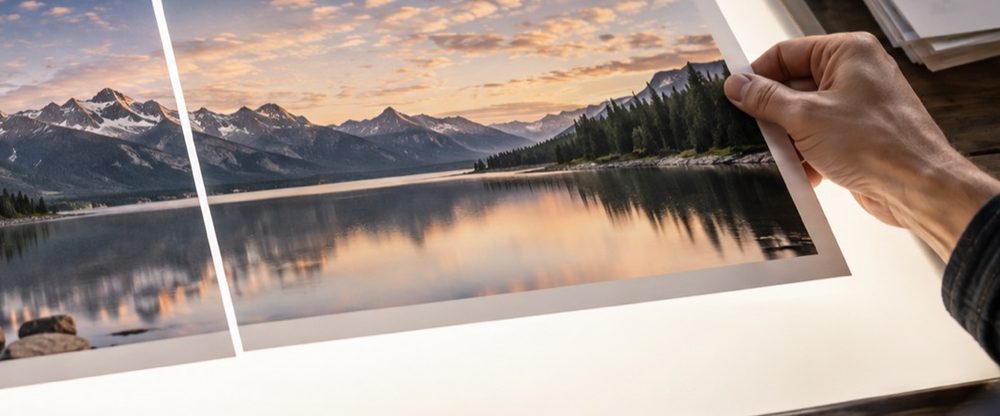
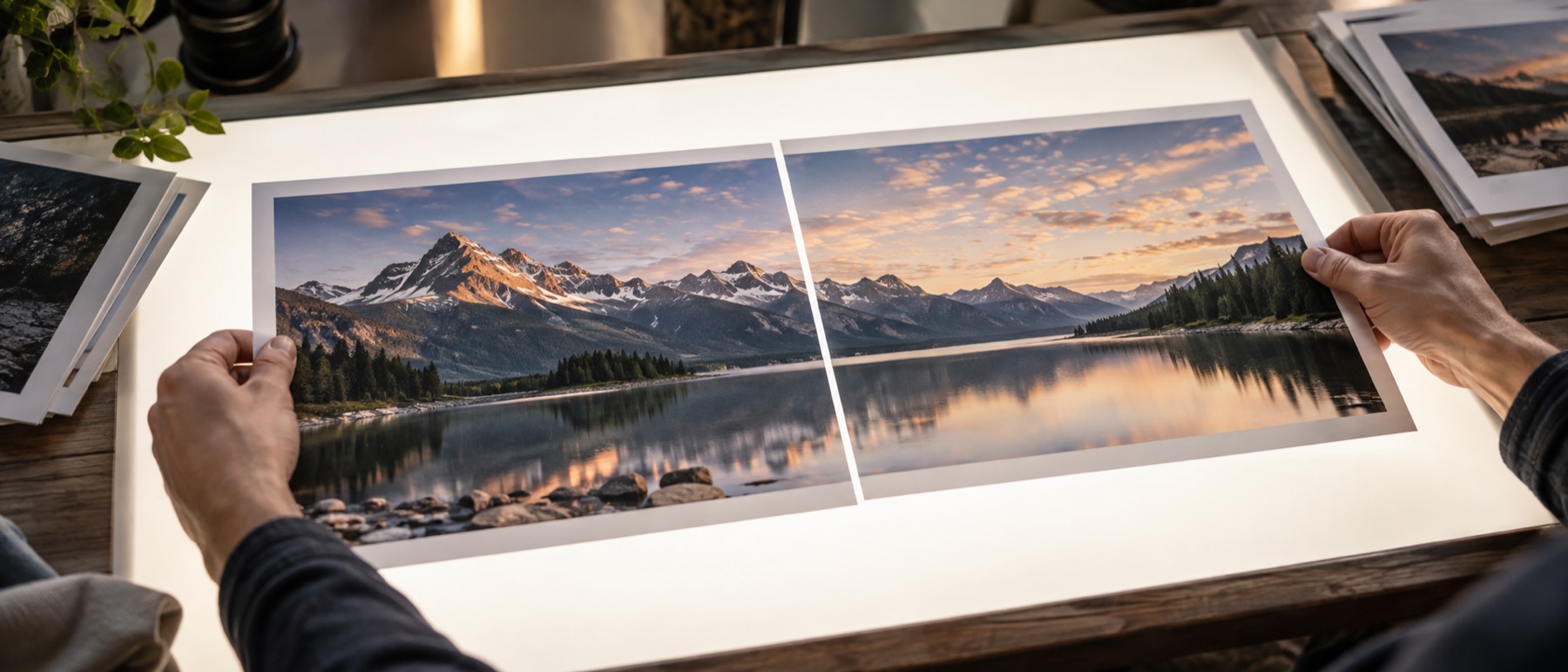
The change should be the only difference
A before-and-after is evidence. A kitchen refit, a haircut, a lawn, a repaired photograph, a product cleaned up — the picture is meant to show what changed, and anything else that differs between the two halves gets in the way: one taken from closer, one framed higher, one brighter. Putting two photos side by side does not fix any of that. This page does: the after photo is brought to the same size and place as the before using two points you choose, both halves are cropped to the same area, and the labels are drawn where you want them.
What each control does
- Align on the points I set. Two points on each photo give a scale (the ratio of the distances between them) and an offset (the gap between their midpoints). Rotation is not changed.
- Equal crop. Keeps only the part of the scene both photos cover, so neither half shows extra background.
- Match exposure. One gain on the after photo so its average brightness matches the before’s, printed in stops.
- Labels. Two lines of text, in a corner pill or a band, sized against the picture so they stay readable at any resolution.
A worked example
A living room before painting, 4000 × 3000, and after, 4000 × 3000 but taken a step closer. The window’s two top corners are 1200 pixels apart in the before and 1350 in the after, so the after is scaled by 1200 ÷ 1350 = 0.889 and moved so the two midpoints meet. The scaled after photo covers 3556 × 2667 of the before’s frame, so with equal crop each half is about 3556 × 2667, and side by side with an 8-pixel gap the result is about 7120 × 2667. Nothing was enlarged, so nothing is softer.
Privacy, specifically
Before-and-after photos are often of people — a smile, a scar, a weight-loss journey — or of the inside of someone’s home. They are aligned and drawn inside this tab, the saved file is drawn fresh so camera details and location stay behind, and the label text is never sent anywhere.
Alignment uses two points and changes scale and position only; it does not straighten a photo taken at an angle or correct a different lens. Face finding is not done automatically here — you place the points. A slider or animated reveal is not made on this page.
Snags with before-and-after photos
My after photo was taken from closer. How do I make them match?
Tap the same two features on both photos — the corners of a window, the two ends of a counter, a person's eyes. The after photo is scaled by the ratio of the two distances and moved so the midpoints land together, and the list under the preview prints the scale and the offset it used. With equal crop on, both halves are then cut to the area they share.
Is it fair to correct the exposure of the after photo?
Sometimes it is the only fair thing — a cloudy day against a sunny one says nothing about the work. But it can also flatter a result or hide one. When you turn it on, the change is printed in stops under the preview, so anyone looking at your workings can see exactly how much light was added or taken away.
Can I write my own words instead of Before and After?
Yes — both labels are editable, in any language your device can display, including Hindi. Choose a corner pill or a full-width band, top or bottom, and a size as a percentage of the picture. The label text is drawn into the picture and never leaves the tab.
Side by side or one above the other?
Side by side for landscape photos and for most websites; stacked for portraits, phones and messaging apps, where a tall picture fills the screen better than a wide one. The alignment and crop work the same either way.
Why is the after half a little soft?
It had to be enlarged to match the before — the list under the preview says so when that happens. Using the photo taken from further away as the before avoids enlarging the other one.