A grid is equal cells, not a row of rows
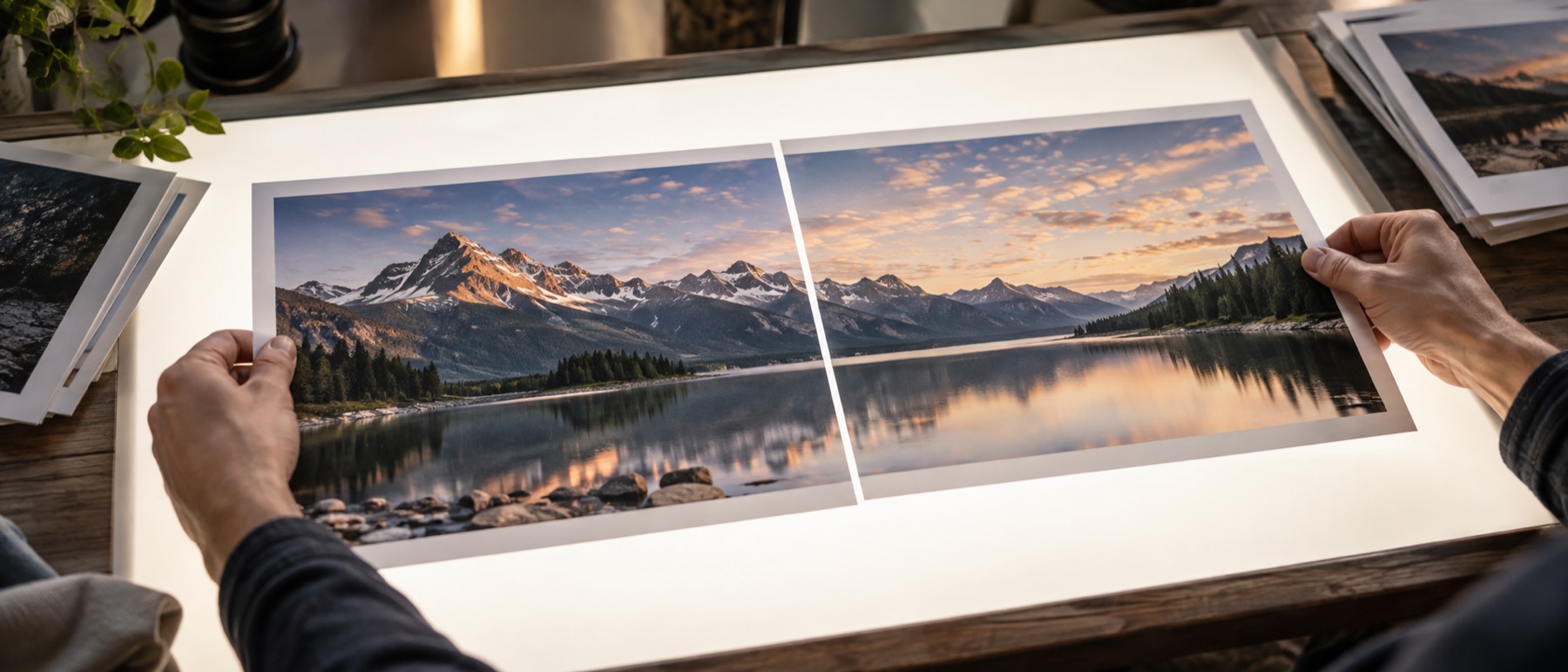
The main workbench on this site makes grids too, but its grid is rows of pictures at their own shapes, butted together — every pixel kept, the shape of the whole decided by the pictures. That is right for joining scans or screenshots and wrong for a social post, where people expect four identical squares with an even gap. This page makes the second kind: the output has a fixed width, every cell has the same shape, and each photo is placed in its cell by a rule you can see.
What each control does
- Shape. Rows and columns, from 1 × 3 up to 6 × 6. Photos beyond the grid’s count are left out and the list says how many; empty cells show the ground.
- Cell shape. The proportion of every cell. “First” borrows the first photo’s own shape, handy for a set shot on one camera.
- Fit or fill. Fit keeps the whole photo and pads it; fill covers the cell and crops the edges. Each photo can override the grid’s choice from its own card, and a filled photo gets two sliders for where the crop is centred.
- Spacing. The gap between cells and the margin around the outside are in pixels of the saved file; rounded corners round every cell by the same radius.
A worked example
Six holiday photos, four landscape at 4032 × 3024 and two portrait at 3024 × 4032, into a 3 × 2 grid of 3:2 cells at 2160 pixels wide with a 12-pixel gap and a 12-pixel margin. Each cell is (2160 − 24 − 12) ÷ 2 = 1062 pixels wide and 708 tall, and the grid comes out 2160 × 2172. The landscape photos are 4:3, a little squarer than 3:2, so fitted whole they leave thin bands at the sides. The portraits leave much more, so those two are switched to fill and their crop centre moved up to keep the faces — the list under the preview records that both were cropped by you.
Privacy, specifically
Grids are usually made of family and holiday photos. They are read and drawn inside this tab, the saved file is drawn fresh so camera details and location do not come along, and nothing about the set is kept after you close the page. If you save an arrangement, only its settings — rows, columns, gaps, colours — are kept, in this browser.
Fill crops: whatever falls outside the cell is not in the saved file. Fit pads instead. Neither ever stretches a photo. Very large grids are limited by what one canvas in your browser can draw, and the page says so before saving.
Snags when making a photo grid
How do I combine 4 photos into one?
Add the four, keep the 2 × 2 shape that is selected to begin with, and save. Each photo sits in its own square cell, kept whole, with a 12-pixel gap between them on a white ground. Change the cell shape to 4:5 or 3:2 if your photos are portrait or landscape, so less of each cell is padding.
Why is there white beside some of my photos?
Because a photo whose shape differs from its cell is fitted whole, and the leftover space shows the ground. Three answers: pick a cell shape closer to your photos, switch that one photo to Fill (it is cropped to the cell, and you choose the centre of the crop), or turn on blur fill so the space shows a soft blur of the photo itself rather than a flat colour.
Can the grid go down the columns instead of across the rows?
Yes. Fill order has two settings: across first fills the top row left to right before the next row, down first fills the left column top to bottom. The order of the pictures in the list is the order they take their cells; the arrows on each card move a photo earlier or later.
What size should the grid be for Instagram?
1080 pixels wide is the width Instagram's help pages say they keep, so a 1080 grid uploads without being shrunk again. A 2 × 2 grid of square cells at 1080 wide comes out 1080 × 1080. Choose 2160 if you want a sharper file to keep and print, and let the app scale it down for posting.
Do the photos get stretched to fill the cells?
Never. Fit scales a photo evenly until it fits inside its cell; Fill scales it evenly until it covers the cell and crops what overflows. Neither changes a photo's proportions. The list under the preview says, per cell, which one happened and whether a photo had to be enlarged — enlarged photos are softer.